The comments panel displays all comments in the PDF so that you can easily find the comments. In addition, it also provides a toolbar with basic options: Expand All, Collapse All, Previous, Next, Sort By, Hide/Show all comments, Search box, and Filter.
- The comment is displayed in the pop-up note or on the markup icon and acts as a tooltip when the pop-up note is closed.
- If you input the comment with too many lines, it will only show some of the comment while the rest will be displayed as suspension points when the cursor is moved outside the pop-up note. Click inside the pop-up note to view it with scroll bar.
- Click the Filter icon to search specific comments you need by the author, status, type, and more. In the Filter Comments dialog box, select a status or author to show the comments that are in the status and made by the author. If you only want to filter the comments by the original author and ignore all the replies, please check Filter by the original author only as well. Click Clear All to clear all filters.
- The Comments Panel displays all the comments in the PDF without any filter; if you have filtered the comments, only the comments that match the filtering criteria appear in the panel. When you navigate through comments, the selected comment will automatically be kept in sync with the current comment being displayed. And you click on a comment to go to the corresponding comment on the page.
To view comments in the Comments panel,
- Click the comments button
 in Navigation pane to open the Comments panel.
 In the Comments panel, there are the following functions to provide you:
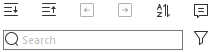
- Search box
 - Type a string to search comments that contains the string.
 - Expand All
 – Click Expand All button to expand individual comments.
 - Collapse All
 – Click Collapse All button to collapse all comments.
 - Previous
 /Next
/Next – Browse through the comments. Click the Previous button or the Next button to go to the previous or next comment. The two buttons are unavailable if no comment is selected.
 - Sort By
 – you can sort comments by author, page, type, date, status, checkmark status, or color. In a thread of replies, only first message is sorted, and the reply messages are sorted in the same category as first message. (Tip: When you sort comments by Page, Foxit PDF Editor will list comments on the same page based on their positions, from left to right and top to bottom.)
 - Show/Hide all comments
 – you can show/hide all comments in the PDF document. (To show/hide all comments on the Comments panel, you can also choose Comment > Manage Comments > Comments > Show All/ Hide All.)
- Search box
Tips:
- The page on which a comment is located is kept in sync with the selected comment in the Comments panel. To go to the page where a comment is located, simply click the comment in the Comments panel.
- Click on a comment in the Comments panel, and the
 icon appears. Clicking the icon opens a context menu for you to do more actions.