Before using the check in/check out features in Foxit PDF Editor, please configure the SharePoint Server.
- Click here to download PDF icon.
SharePoint 2007: Copy the downloaded.GIF file to "Drive: \Program Files\Common Files\Microsoft Shared\Web Server Extensions\12\Template\Images".
SharePoint 2010: Copy the downloaded.GIF file to "Drive:\Program Files\Common Files\Microsoft Shared\Web Server Extensions\14\Template\Images".
SharePoint 2013: Copy the downloaded.GIF file to "Drive:\Program Files\Common Files\Microsoft Shared\Web Server Extensions\15\Template\Images".
SharePoint 2016: Copy the downloaded.GIF file to "Drive:\Program Files\Common Files\Microsoft Shared\Web Server Extensions\16\Template\Images".
SharePoint 2007: Edit the file “Drive:\Program Files\Common Files\Microsoft Shared\Web server extensions\12\Template\Xml\DOCICON.XML”.
SharePoint 2010: Edit the file “Drive:\Program Files\Common Files\Microsoft Shared\Web server extensions\14\Template\Xml\DOCICON.XML”.
SharePoint 2013: Edit the file “Drive:\Program Files\Common Files\Microsoft Shared\Web server extensions\15\Template\Xml\DOCICON.XML”.
SharePoint 2016: Edit the file “Drive:\Program Files\Common Files\Microsoft Shared\Web server extensions\16\Template\Xml\DOCICON.XML”.

To edit the file, please refer to the following steps:
a. Right-click DOCICON.XML file > click Open With > select Notepad.
b. Add an entry for the file with .pdf extension and take it as the file’s name. For example, type the ICPDF as the name of the .gif file:
Mapping Key="pdf" Value="pdficon.gif"
OpenControl="FoxitPhantomPDF.OpenDocuments" EditText="Foxit PhantomPDF" OpenApp="FoxitPhantomPDF />
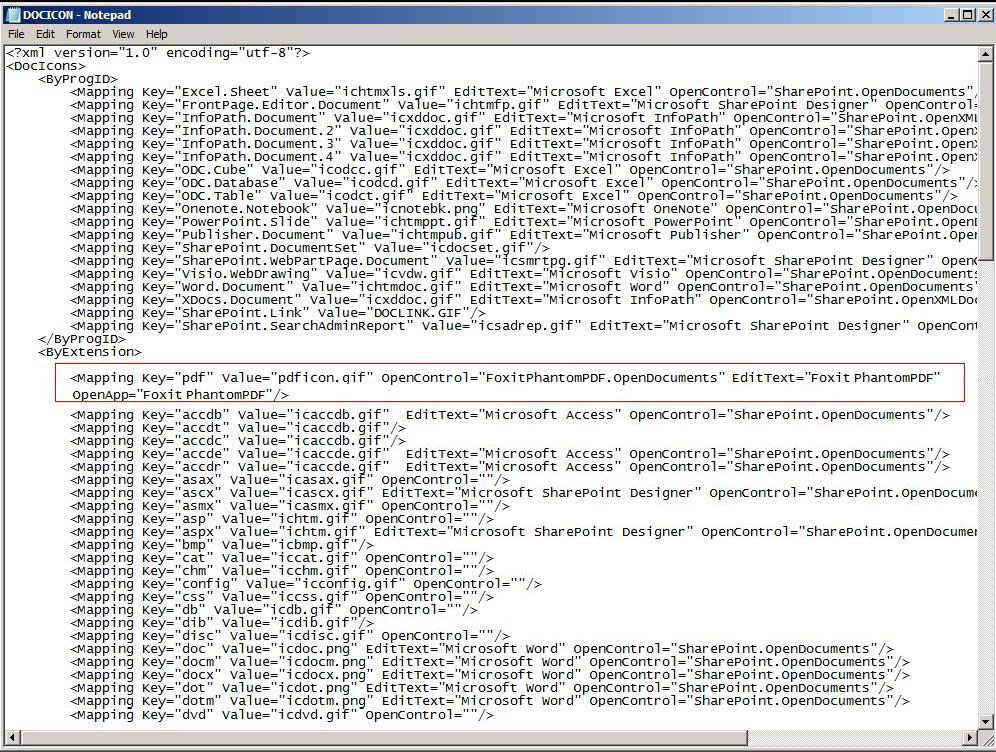
c. Click Save on the File menu, and then quit Notepad.
- Navigate to the IIS server (Internet Information Services Manager) under Windows Administrative Tools. Open the service and click Restart in the right panel of the Internet Information Services (IIS) Manager window to restart it. Alternatively, you can restart the service through the command line by entering iisreset.
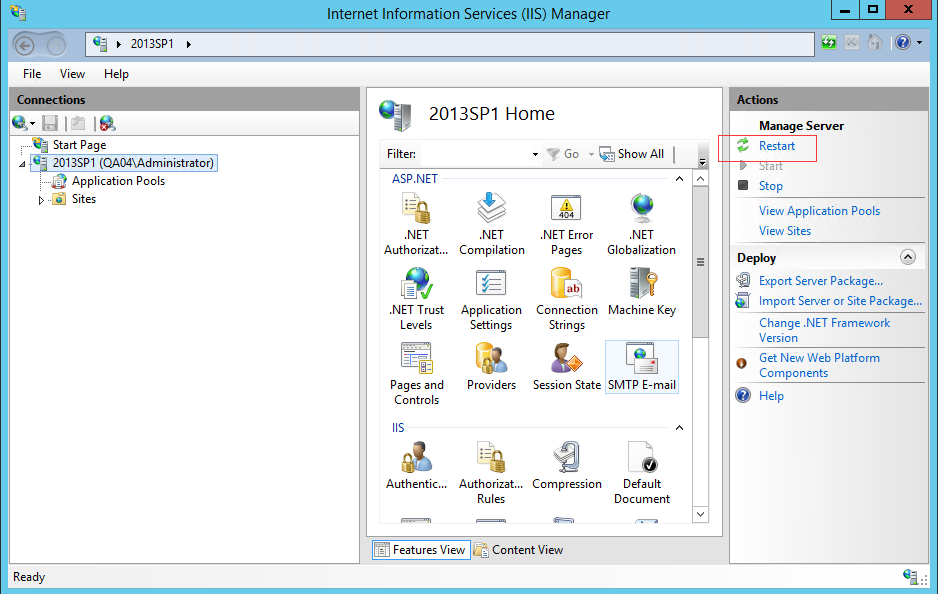
After the restart, reopen your IE browser.
For SharePoint 2007 and 2010, when you click on the file in your SharePoint repository on the IE browser, the document will be directly checked out and opened in Foxit PDF Editor.
For SharePoint 2013 and 2016, additional configuration is required. Please do the following steps to complete. (Take SharePoint 2013 for example)
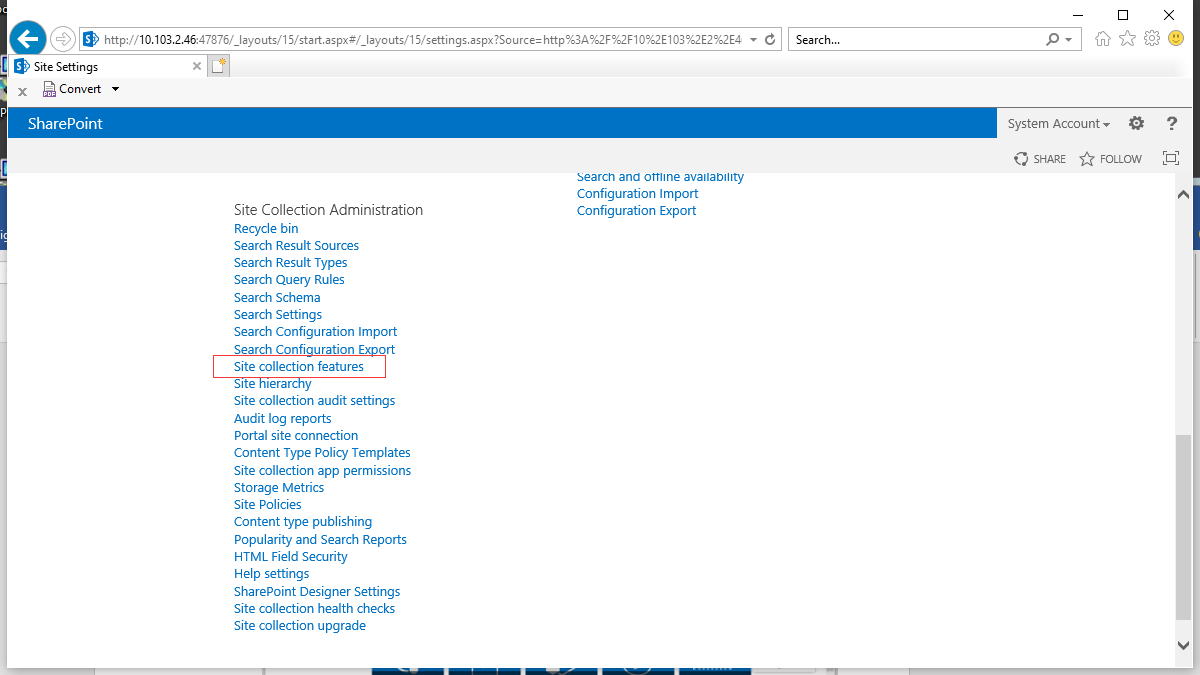
Enter the URL address of the SharePoint server on the IE browser and open Site settings.
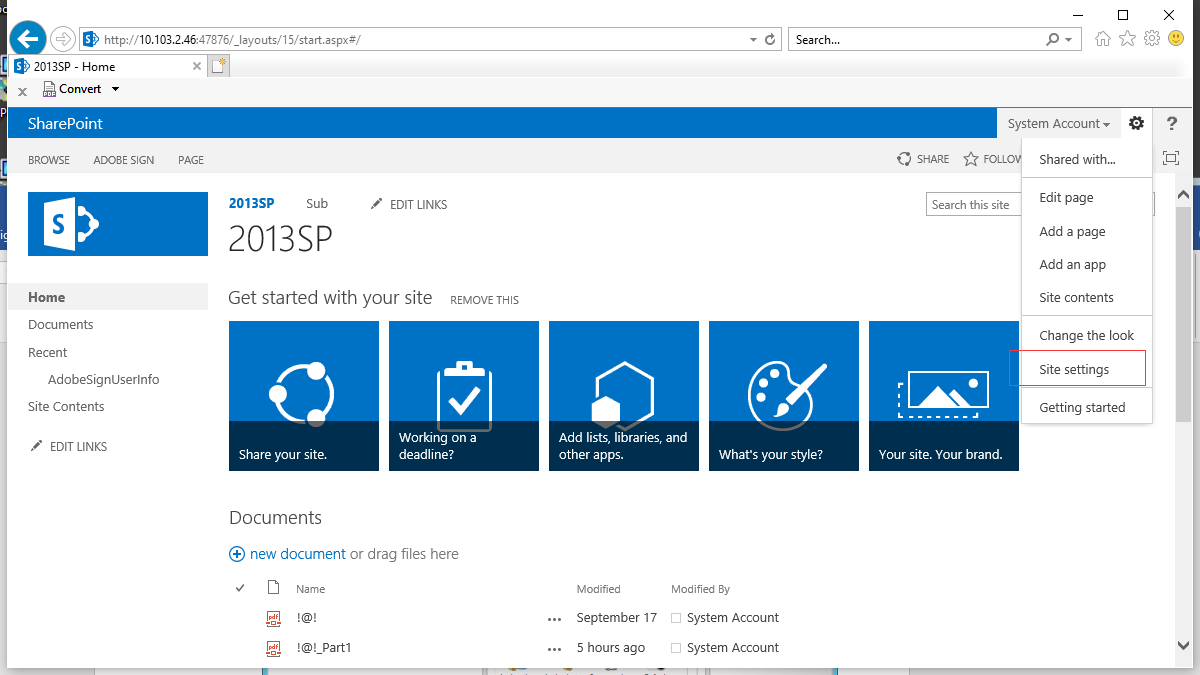
On the Site settings page, navigate to Site collection administration and choose Site collection features.
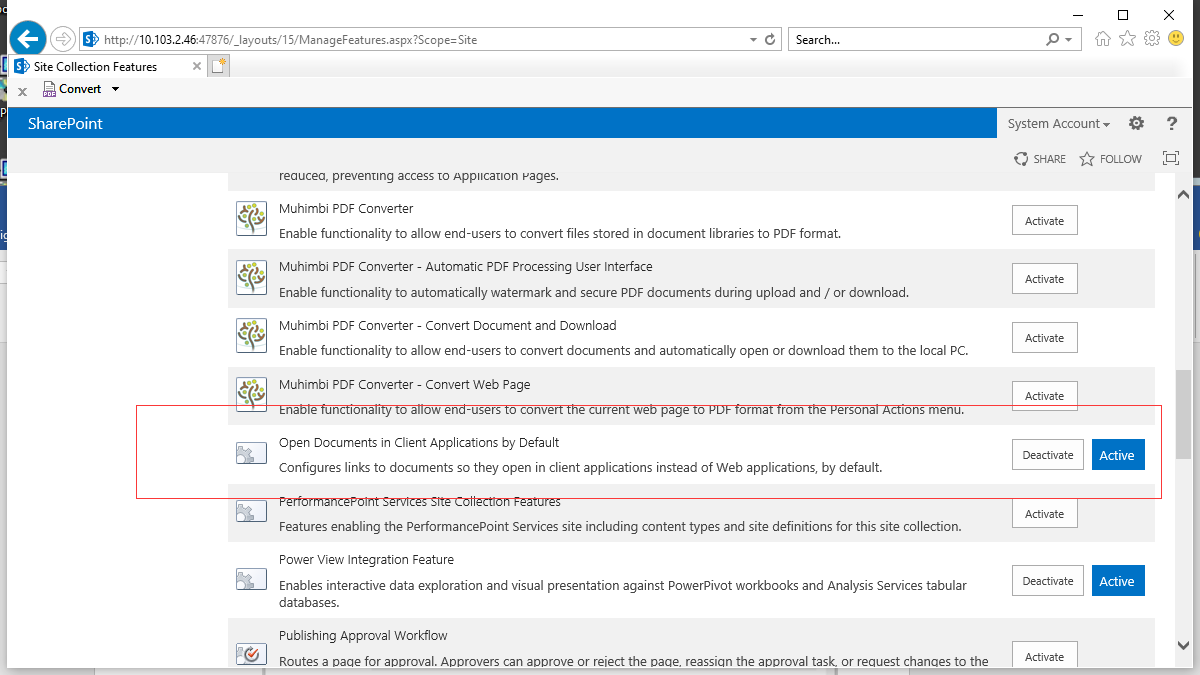
On the Site Collection Features page, find Open Documents in Client Application by Default and click Activate.

After activation, the interface is shown as below:
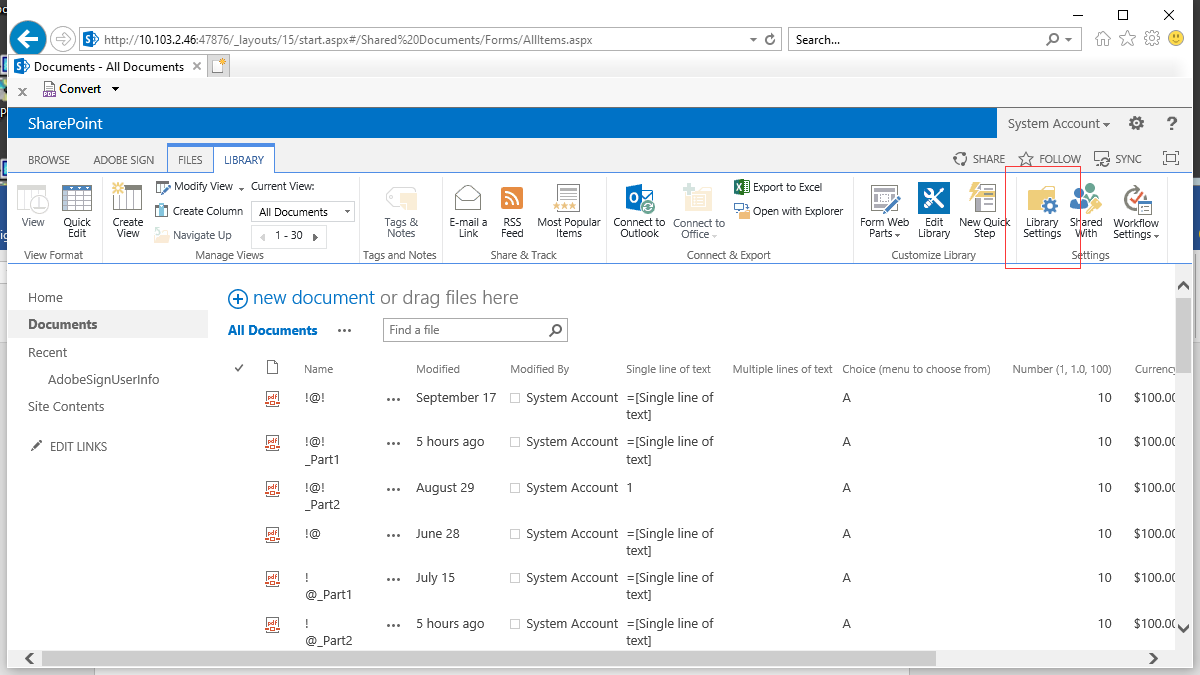
Open the document library in SharePoint and select Library Settings.
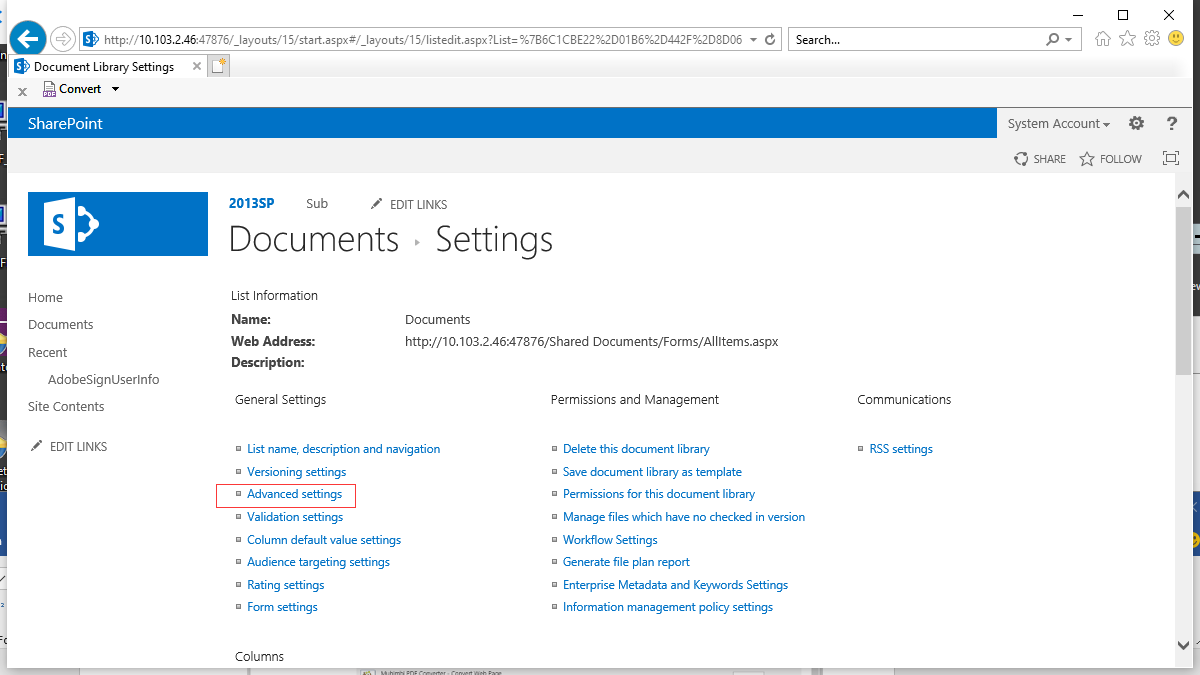
Then choose Advanced settings under the General Settings item.
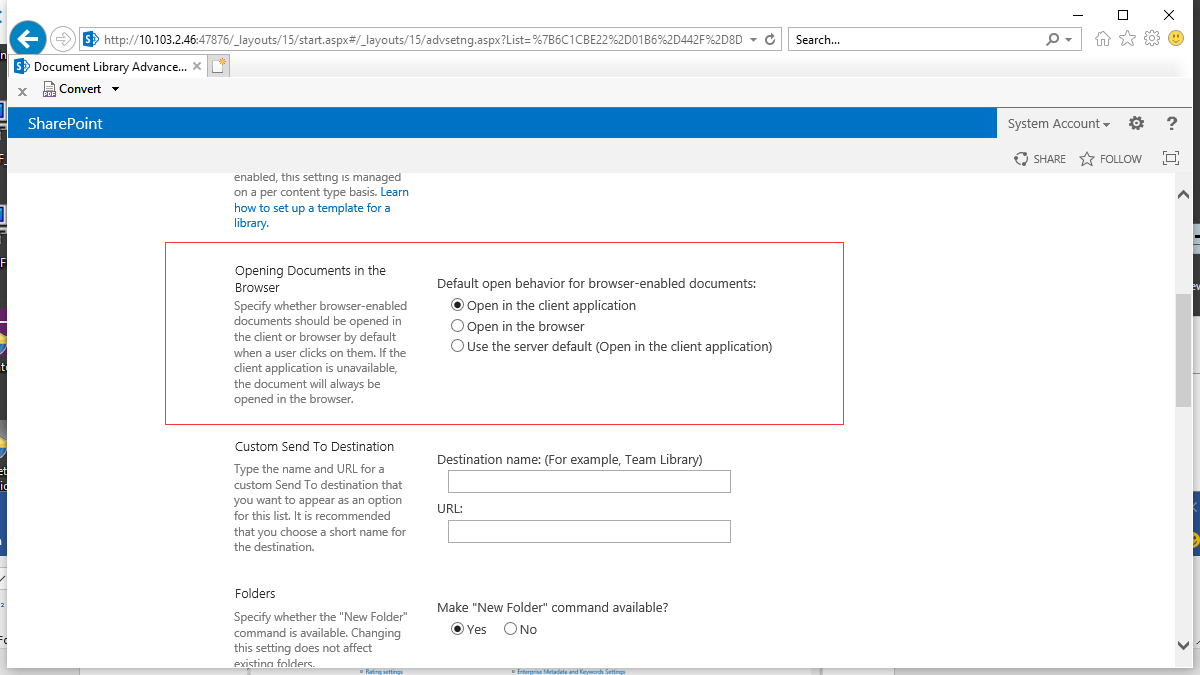
Make sure that the Open in the client application option is checked in the Opening Documents in the Browser item.
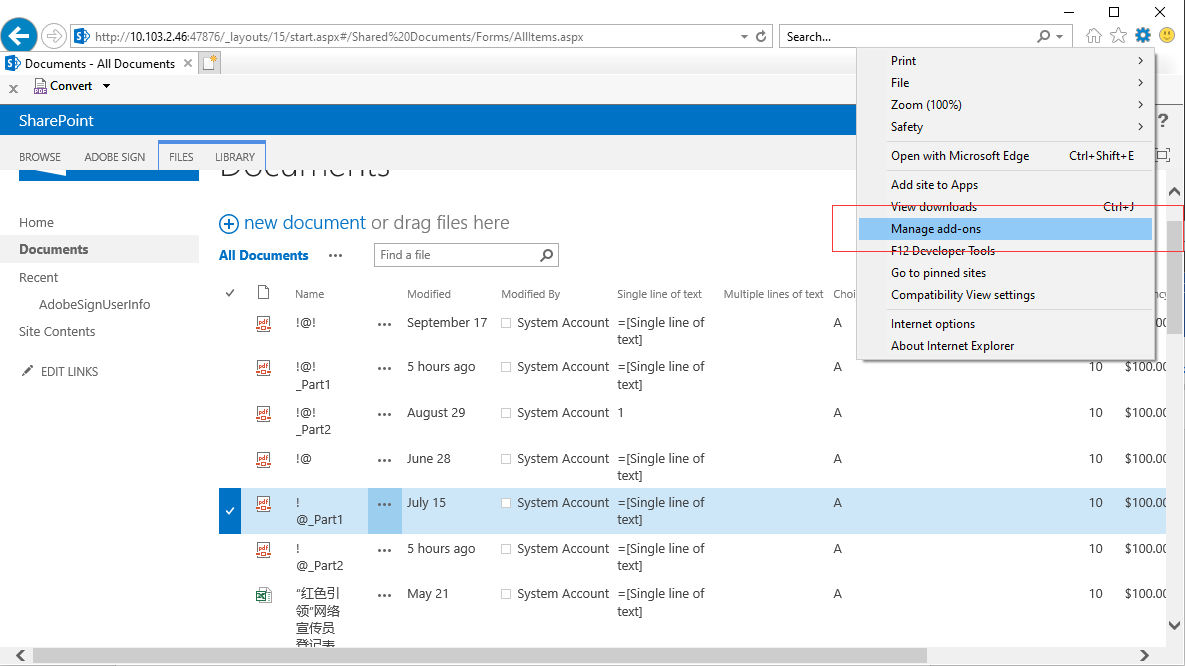
Click the Settings icon in the upper-right corner of the IE browser, and choose Manage add-ons.
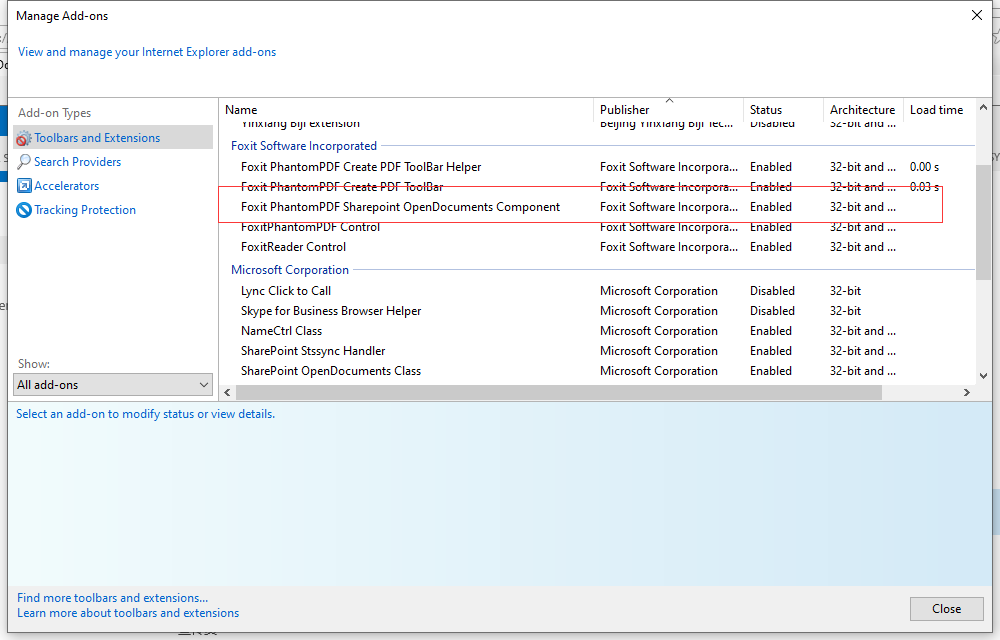
Select All add-ons and make sure that Foxit PhantomPDF SharePoint OpenDocuments Component is enabled.
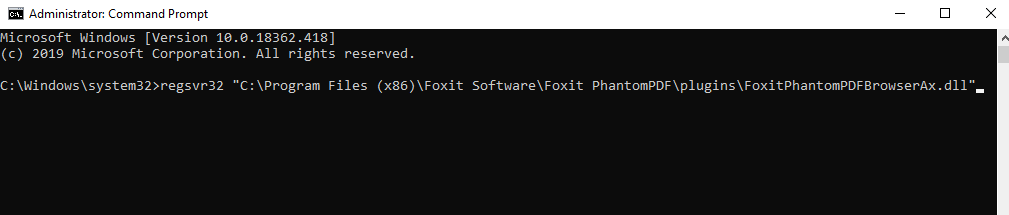
In addition, note that it is required for users of PhantomPDF 9.7 to register FoxitPhantomPDFBrowserAx.dll manually as follows:
1) Run Command Prompt as administrator and run the command: regsvr32 “full path to FoxitPhantomPDFBrowserAx.dll”. (Tip: By default, FoxitPhantomPDFBrowserAx.dll is in “C:\Program Files (x86)\Foxit Software\Foxit PhantomPDF\plugins”.)
2) If the registration is successful, a message box pops up.
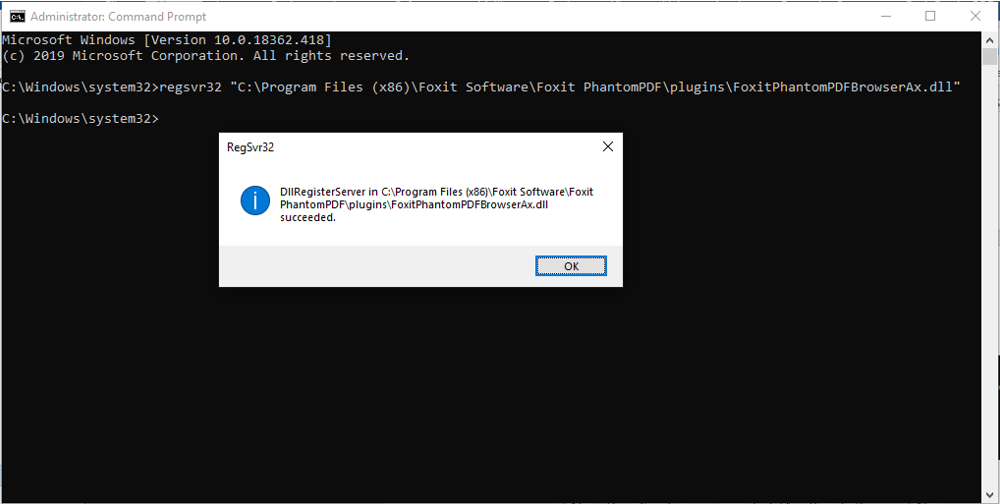
3) Reopen the IE browser.
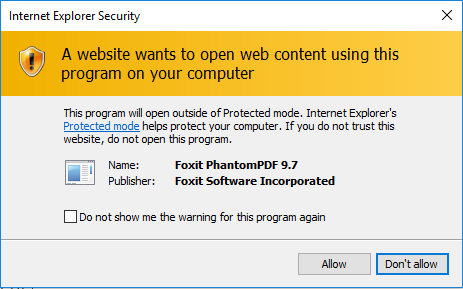
Note: When you open a document (whether by clicking the document or through the Open command in the context menu after right-clicking it) in your SharePoint repository on the IE browser the first time, select Allow in the prompted dialog box asking you whether to run FoxitPhantomPDFOCX ActiveX Control Module or PhantomPDF.