With the Edit Text command, you can edit texts in a paragraph like Microsoft Office Word as well as changing their font, font size and color.
To edit texts in a paragraph, please do the following:
- Select Edit > Edit Text. (Tip: You can also right-click the selected text with the Select Text and Image command and choose Edit Text to start editing text in the paragraph quickly.)
- Click on the desired paragraph to start editing. And you can set the text formatting in the Format tab that appears in the right panel. (Refer to the tables below for the instructions about the Text Style buttons. More editing features please refer to Edit Objects.) Foxit PDF Editor will automatically change a line when the text comes to the margin of it. You can also start a new line by pressing Enter. See also the tutorial on Edit PDF.
(Optional) With the Edit Text command selected, click anywhere in the paragraph. Click and drag the
 icon that appears on the text box to rotate the paragraph as you need.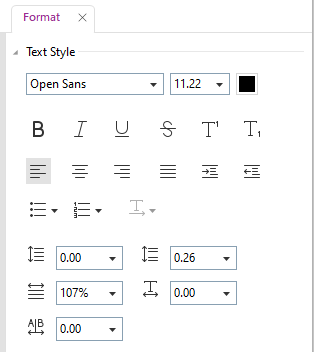
The Text Style buttons in the Format tab
Button | Name | Description |
 | Bold | Text with bold formatting has thicker strokes than its ordinary form. |
 | Italic | Text with italic formatting leans to the right. |
 | Underline | Draw a line under the text. |
 | Strikethrough | Draw a line to cross out text, making others know the text is deleted. |
 | Superscript | Decrease the font size proportionally and raise the baseline, like the registered trademark symbol ®. |
 | Subscript | Decrease the font size proportionally and lower the baseline, like a footnote. |
 | Font Color | Simply click on the font color button to apply the color shown to the text, or click on the drop-down menu to select a color for the text. |
 | Character Spacing | Set the space between each individual character that you type. |
 | Writing Direction | Set the writing direction (left-to-right or right-to-left) in which you type text. |
Button | Name | Description |
 | Bullets | Create a bulleted list for paragraphs. Click on the drop-down menu to choose a bullet style. |
 | Numbering | Create a numbered list for paragraphs. Click on the drop-down menu to choose a number style. |
 | Align Left | Align the left edge of the paragraph to the left margin. |
 | Center | Center each line of the paragraph with even space on both sides. |
 | Align Right | Align the right edge of the paragraph to the right margin. |
 | Justify | Align both sides of the paragraph with both margins. |
 | Increase Indent | Move the paragraph farther away from the left margin. |
 | Decrease Indent | Move the paragraph closer to the left margin. |
 | Line Spacing | Set the space between each line in a paragraph. |
 | Paragraph Spacing | Set the space between two paragraphs. |
 | Word Spacing | Set the space between each word. |
 | Character Scale | Set the width of each character. |
Note: Clicking on a scanned or image-based PDF with Edit Text command, a message prompts where you can click Recognize Text to run OCR, or click Settings to specify OCR settings before recognizing text. To not show the prompted message again, you can go to File > Preference > Editing > uncheck the option “Alert when there’s no editable text when using ‘Edit Text’ tool”.