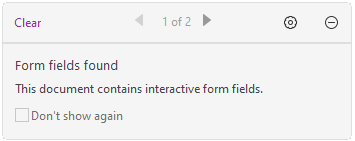
For interactive forms, you will see a message box appear in the top-right corner of the application window. The message box informs you that this document is a fillable form. Click  to collapse the notification message. If you do not want to see the notification message again when reopening this file, check Don’t show again option in the notification message. Clicking the gear icon
  in the notification message can change the preferences about notification message setting. Please refer to Notification Messages preferences for more information.
Foxit PDF Editor highlights the form fields in the document by default, which colors the backgrounds of all blanks to be filled in and outlines any required blanks, making it easy to see them at a glance. If you don’t need to highlight the fields, navigate to Form > Tool Setting > uncheck Highlight Fields.
AcroForm and XFA (XML Forms Architecture) Form
Foxit PDF Editor now supports both AcroForm and XFA Form. You can fill in XFA forms with the Hand command, the same which you were able to do with normal fillable forms (also known as AcroForm).