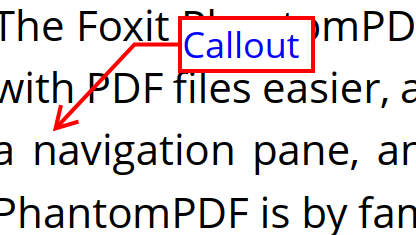
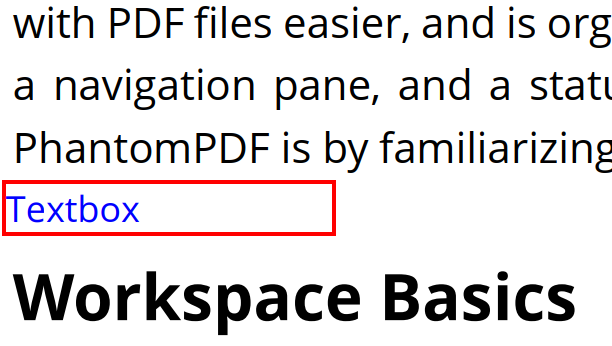
Callout and Textbox are designed for users to create comments in a callout text box or a box.
A callout text box contains a text box and an arrow, which is especially useful when you want to single out (but not obscure) a particular area of a document.
A textbox is a rectangle of any size, possibly with a border that separates the text box from the rest of the interface, allowing the user to input text information. A text box usually remains visible on the document page. It doesn’t close like a pop-up note.
Note: Callout text boxes and Text boxes allow for horizontal text only.
Add a callout or textbox
- Choose Comment > Callout/Textbox.
- Click the place where you want to insert the callout or text box. The Format tab appears in the right panel for you to specify the font format, add bulleted/numbered lists to paragraphs, align text, etc. See also the buttons in the Text Style group in the Format tab.
- Type the text. Text wraps automatically when it reaches the right edge of the box.
Resize, move, edit or delete a callout or textbox
Select the Hand command, the Select Annotation command, or the corresponding annotation tool, and do one of the following:
- To resize the callout or textbox, select it and drag any of the sizing handles to resize it.
- To move a textbox comment, click on it (the cursor changes to a solid arrow
 ), and drag it to the intended place.
 - For a callout comment, select it, then drag the text box to move the text box only, drag the line with the arrow to move the entire callout, or drag the arrow only to move the arrow to the position you want to point to.
- To edit the text in the callout or text box, please refer to “Editing the Typewriter Comment”.
- To change the appearance of a callout or textbox comment, select it and use the formatting commands on the floating toolbar or in the Format tab.
- To delete the callout or textbox, select it and press Delete, or right-click it and then choose Delete. Or just right-click the comment in the Comments panel, and choose Delete from the context menu.