Windows Information Protection (WIP), a feature that enterprises use to protect enterprise data by encrypting it and separating it from personal (or employees’) data, provides a way to manage data policy enforcement for enterprise apps and documents. For enterprises that are using WIP policies can include Foxit PDF Editor and network locations in their policy restriction on PDF documents, which helps to protect enterprise data against potential data leak on enterprise owned-devices and personal devices that employees bring to work.
Note: To run WIP in your system, Windows 10 (version rs2 and later) is required.
Administrators in enterprises often use Microsoft Intune or MobileIron to define and deploy WIP policies. Here, we’ll use a MobileIron example to explain how to add Foxit PDF Editor and the network locations to your WIP policies.
- Sign in MobileIron at https://login.mobileiron.com/login.html in the Google Chrome browser or Firefox browser.
- Go to Configuration > + Add to create a WIP configuration (or a WIP policy).
- (Optionally) You can choose an existing WIP configuration to add Foxit PDF Editor and the network locations where Foxit PDF Editor can access enterprise data.
In the left part of the webpage, click on the Windows icon
 in the OS option. Then select the Windows Information Protection configuration from configuration types in the right part of the webpage.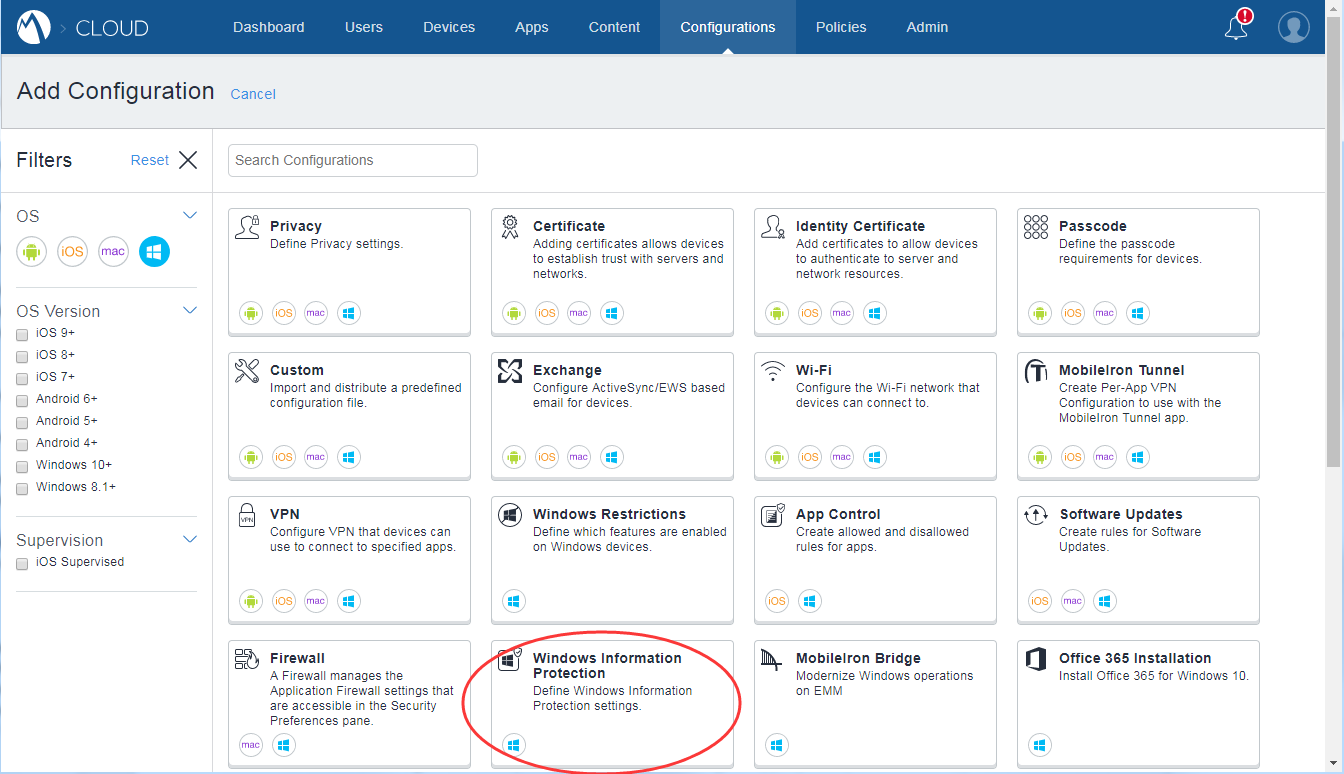
Enter a name and a description for the configuration.
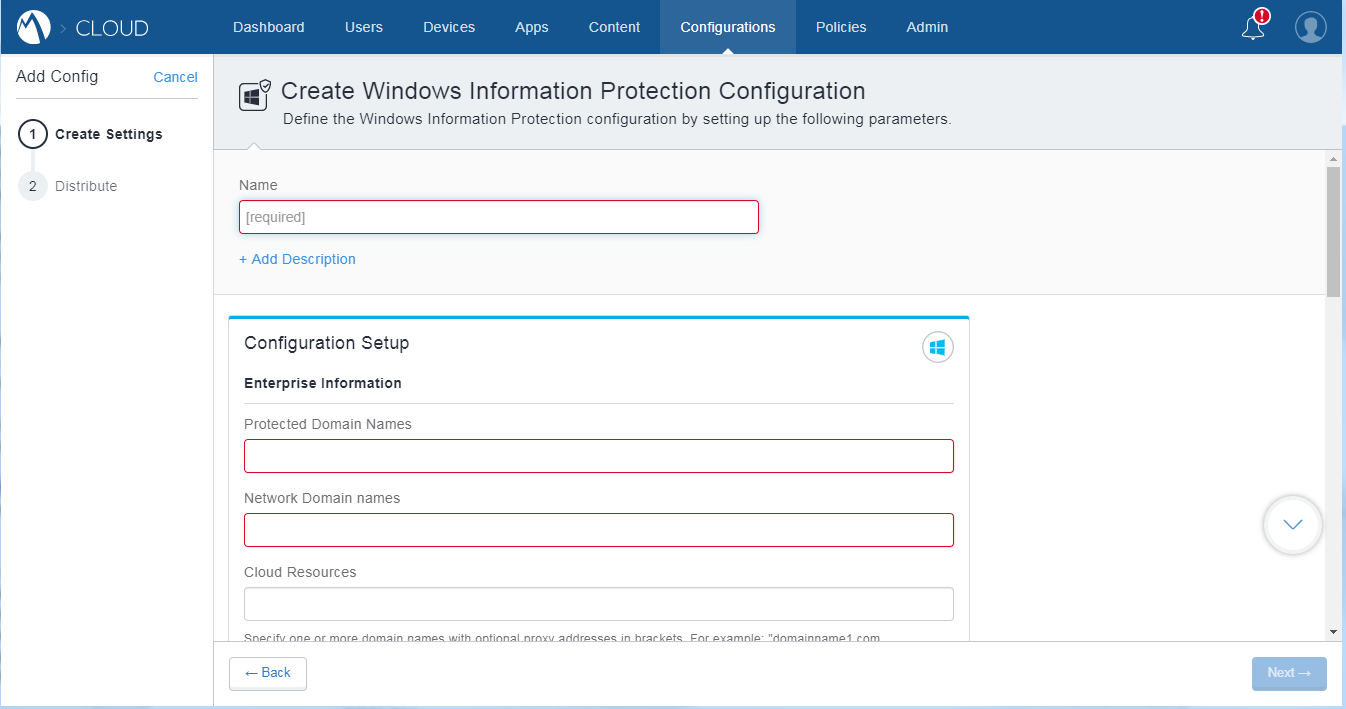
- In the Configuration Setup section, specify the settings as appropriate (For the details, please refer to MobileIron’s help on WIP.). You can add the network locations and Foxit PDF Editor to the WIP configuration in Cloud Resources and App Control respectively.
- Click Next.
- Select a distribution for this configuration.
Note: For Cloud Resources, add the Enterprise resource domains hosted in the cloud where Foxit PDF Editor can access the enterprise data. You can choose one or multiple network locations to be protected with your WIP policies from the following URLs as needed. If you have multiple resources, separate them using the semicolon.
NdOffice: www.netdocuments.com
eDOCS DM: www.opentext.com
iManage Work: www.imanage.com
OneDrive for Personal: onedrive.live.com
OneDrive for Business: office.live.com
Dropbox: www.dropbox.com
Box: www.box.com
Google Drive: drive.google.com
(Note: For SharePoint network, you can enter your custom URL.)