Foxit PDF Editor provides horizontal and vertical ruler guides to help you align and position text, graphics or other objects on the page. They can also be used to check the size and margins of your documents.
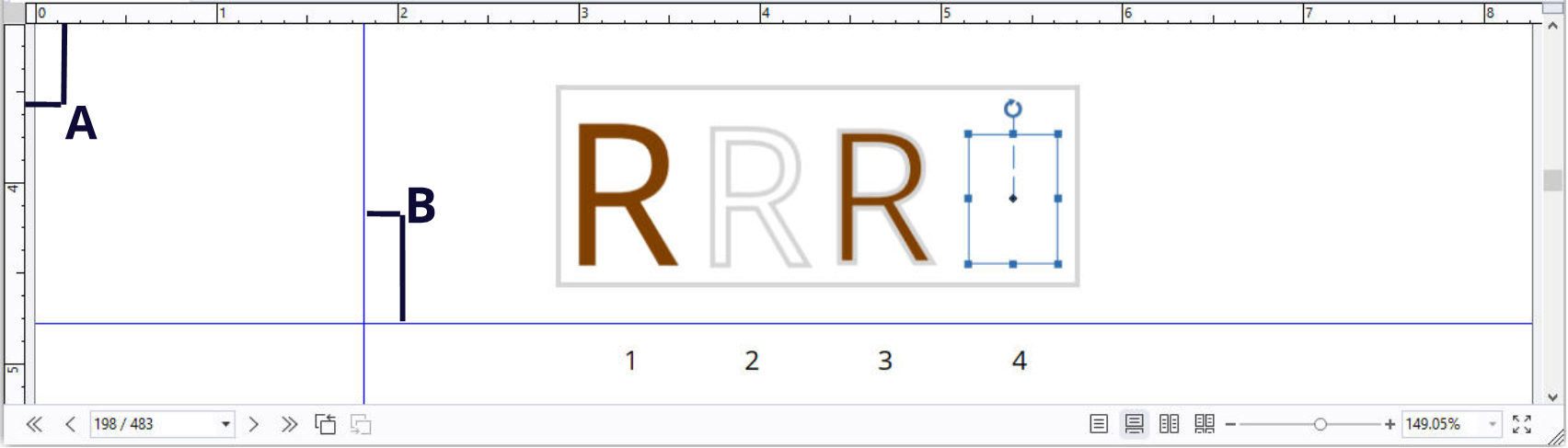
Rulers & Guides
A. Rulers B. Guides
To show or hide rulers/guides, select View > View Setting > Page Display > check or uncheck Rulers/Guides.
To create ruler guides, follow the steps below:
- Drag down the horizontal ruler to create a horizontal guide, or drag to the right of the vertical ruler to create a vertical guide.
- Double-click a location on the horizontal ruler to create a vertical guide, or double-click a location on the vertical ruler to create a horizontal guide.
To move ruler guides, select the Hand command, click and hold the guide, and then drag it to a new location.
To change the unit of measurement, right-click the horizontal ruler or the vertical ruler, and select a measurement system for the rulers.
To delete ruler guides, please do one of the following:
- To delete a guide, click the guide to select it, and then press the Delete key.
- To delete all guides on a certain page, scroll to the page, right-click the ruler area and choose Clear Guides on Page.
- To delete all guides, right-click in the ruler area and choose Clear All Guides.