Summarizing comments is an easy way to help you directly obtain a synopsis of comments associated with the PDF. Foxit PDF Editor supports to create a comment summary in either PDF or CSV format (available in Subscription Releases).
To create a comment summary in PDF, do as below:
- Choose Comment > Summarize Comments > PDF Summary.
- In the PDF Summary dialog box, do the following:
- Choose the layout of the summary and there are five types of layouts for you to choose:
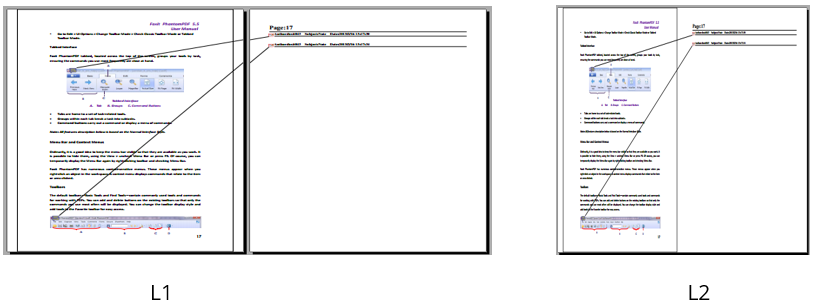
- L1--Document and comment with connector lines on separate pages
- L2-- Document and comment with connector lines on single pages
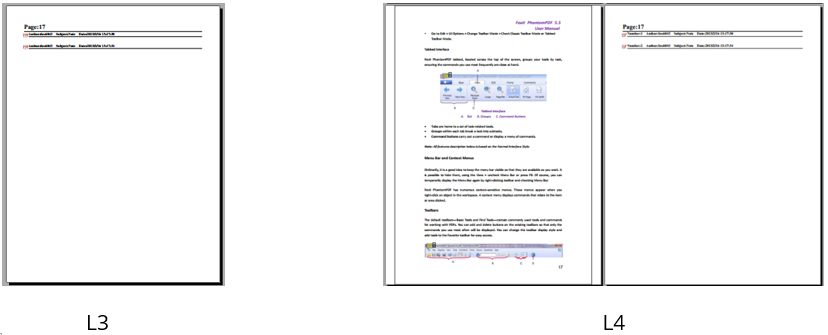
- L3—Comments only
- L4-- Document and comment with sequence numbers on separate pages
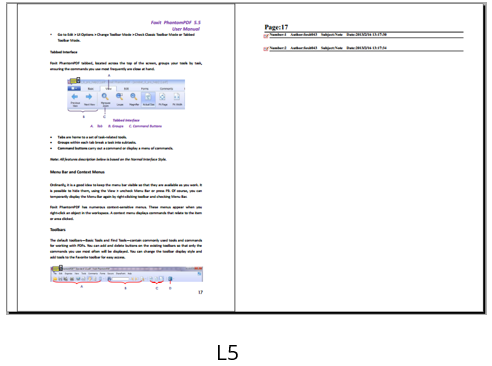
L5-- Document and comment with sequence numbers on single pages
- Comment Type - Choose the comment type you want to summarize.
- Paper Size-Select the paper size of the summary
- Font Size - Select the font size of the summary.
- Sort comments by – Choose how to sort the comments.
- Include pages– Specify the page range you need to summarize.
- Choose the layout of the summary and there are five types of layouts for you to choose:
- Click OK. A PDF containing the comment summary will be opened automatically. You can rename the file before you close it.
To create a comment summary in CSV, do as below: (Available in Subscription Releases)
- Choose Comment > Summarize Comments > CSV Summary.
In CSV Summary dialog box:
1) From the Select Columns box on the left, choose which columns to include (e.g., Subject, Page Label, Creation Date).
2) On the right, select the comment types to summarize.
3) Choose a sorting option to define how comments are ordered in the CSV file.
4) Specify whether the CSV file should open automatically after creation.
5) Define the page range to include in the summary.
- After you click OK and specify where to store the created CSV file, the summary creation starts.