When you right-click an object or multiple objects with the same type, and choose Properties…, you can view and change the options in it.
Set objects properties
- With the Edit Object command, right-click text objects, images objects, shape objects (or path objects) and shading objects, and choose Properties....
There are General tab and Appearance tab in the properties dialog box. The general tab is as below: (Take image objects properties for example.)
You can specify a number of properties that are common to all objects in the General properties.
- Position X and Y: Allow you to set the precise horizontal and vertical position of the objects.
- Width and Height: Displays the selected object’s width and height values.
- Scale X and Y: Allow you to enter a percentage value in the Scale X or Scale Y box to resize the object.
- In Image Object Properties dialog box, in the Appearance tab, drag the slider or enter a value to specify the opacity of the image object. Opacity can range from 1% to 100%. For transparent paint or a weak effect, specify a low percentage value; for more opaque paint or a strong effect, specify a high value.
- In shape object properties dialog box, please do any of the following:
- Line Color: The stroke color is used to paint the border of paths and text that are stroked.
- Fill Color: The fill color is used to paint the interior of paths and text characters that are filled.
- Line Width: The line width specifies the thickness of the line used to stroke a path and is measured in user space units. A line width of 0 specifies the thinnest line that can be rendered on the output device. The default value is 1.
Note: A line width of 0 is an inherently device-dependent value. Its use is discouraged because the line may be nearly invisible when printing on high-resolution devices.
Miter limit: When two line segments meet at a sharp angle it is called a Miter join and has been specified as the line join style. It is possible for the miter to extend far beyond the thickness of the line stroking the path. The miter limit imposes a maximum on the ratio of the miter length to the line width, as shown in the following figure. When the limit is exceeded, the join is converted from a miter to a bevel.
The value for miter limit is a number that must be greater than or equal to 1, and has a default value of 10.
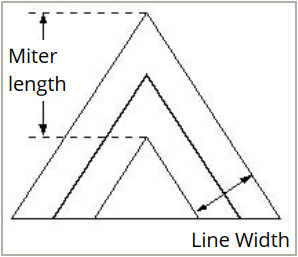
Miter length
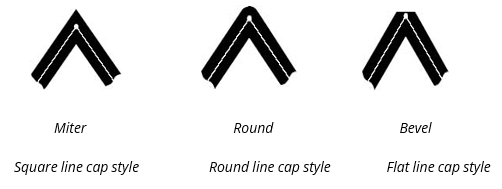
- Line Join Style: The line join style specifies the shape to be used at the corners of paths that are stroked. The allowed values are Miter joins, Round joins and Bevel joins.
- Miter — the outer edges of the strokes for the two segments are continued until they meet. If the extension projects too far, as determined by the miter limit, a bevel join is used instead.
- Round — a circular arc with a diameter equal to the line width is drawn around the point where the segments meet and filled in, producing a rounded corner.
- Bevel — the two path segments are drawn with butt end caps (see the discussion of line cap style), and the resulting notch beyond the ends of the segments is filled in with a triangle.
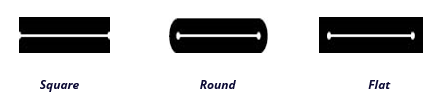
- Line Cap Style: The line cap style specifies the shape to be used at the ends of open sub paths when they are stroked. Allowed values are Butt end caps, Round end caps, and Projecting Square End.
- Square: --- the stroke is squared off at the endpoint of the path.
- Round: --- a semicircular arc with a diameter equal to the line width is drawn around the endpoint and filled in.
Flat: --- the stroke extends beyond the end of the line by a distance that is half the line width and is squared off.
- Dash: Select a type of line, dashed or solid.
- Opacity: Enter a value, or drag the slider to specify the opacity. Opacity can range from 1% to 100%. For transparent paint or a weak effect, specify a low percentage value; for more opaque paint or a strong effect, specify a high value.
In text object properties dialog box, please do any of the following:
Font Name– Changes the font used by the selected text to the font you specify.
Font Size – changes the font size to the size that you specify.
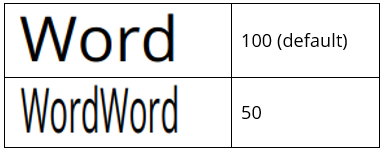
Horizontal Scaling – adjusts the width of characters by stretching or shrinking them in the horizontal direction. The scaling is specified as a percent of normal width of the characters, with 100 being the normal width. The scaling always applies to the x coordinate. The following figure shows the effect of horizontal scaling.
Text Mode – determines whether text is stroked or filled. There are four types of text modes: Fill Text, Stroke text, Fill then stroke text, and Text with no fill and no stroke.
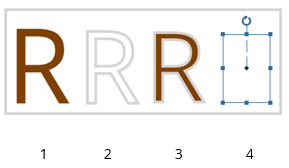
1. Fill text 2. Stroke text 3. Fill then stroke text 4. Text with no fill and no stroke
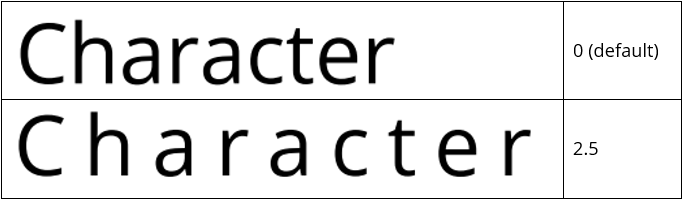
Character Space – inserts uniform spacing between two or more characters in selected text.
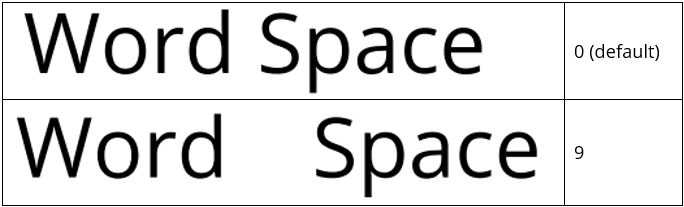
Word Space – inserts uniform spacing between two or more words in selected text.
For stroke color, fill color, and opacity, please refer to Shape Object Properties.