Foxit PDF Editor allows users to add trusted URLs to better manage file access.
To set on-line whitelist, please follow the steps below:
Choose File > Preferences > Trust Manager > click Change Settings in the Internet Access from PDF Files outside the web browser group, then Manage Sites dialog box will pop up as shown below:
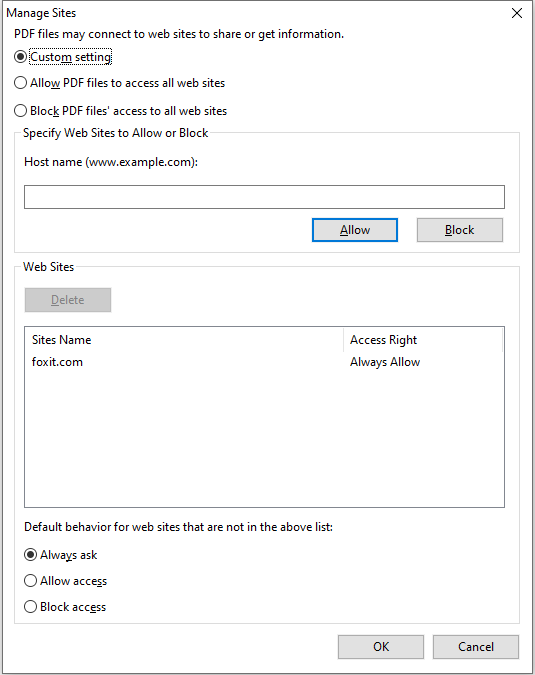
- Allow PDF files to access all web sites: Select it to allow access to all web sites.
- Block PDF file access to all web sites: Select it to restrict access to all web sites.
- Custom setting: You can customize the trusted URLs to restrict access to only the URLs you customize.
- Select Custom setting.
- Input the host name of a website under the Host name field.
- Click Allow and then click OK.
The URLs that you trusted will be added in the Web Sites List. If you want to delete the trusted URL, please select it and click Delete. For the URLs not included in the Web Sites List, you can check one of the following options to set the default behavior when connecting to the web sites.
- Always ask: When you try to access websites not listed as trusted, Foxit PDF Editor will always prompt you with a pop-up window saying: “If you trust this site, click Yes; otherwise, click No”. This is selected by default.
- Allow access: Access to all websites will be available if it is selected.
- Block access: Access to all websites will be blocked if it is selected.