After recognizing image-based or scanned texts in the PDF file, you can pick out and correct the texts or characters that are uncertain as the steps below:
- Click Convert > Suspect Results > First Suspect. A pop-up Find OCR Suspects dialog box appears and all the OCR suspects are enclosed in red boxes in the document.
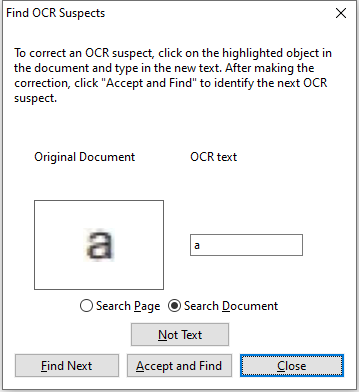
The Find OCR Suspects dialog box
Note: By default, the suspect results are based on the Search Document. You can also select Search Page to find suspects on the current page and redo this step.
- The Find OCR Suspects dialog box shows both the original document text and the OCR text. You can edit text in the OCR text box directly if needed. If some content that is originally not text is incorrectly identified, click Not Text. Click Find Next to find the next suspect or click Accept and Find to accept the OCR text and find next.
- (Optional) You can also directly click on the text in the document where it is incorrect and input the correct text in the OCR text box in the Find OCR Suspects dialog box.
- Click Close to exit the Find OCR Suspects dialog box.
- (Optional) If you choose Convert > Suspect Results > All Suspects. The OCR Suspects dialog box pops up and allows you to select and correct multiple suspect results at once, with all the OCR suspects enclosed with red boxes.
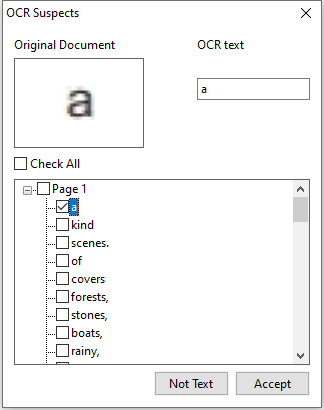
The OCR Suspects dialog box