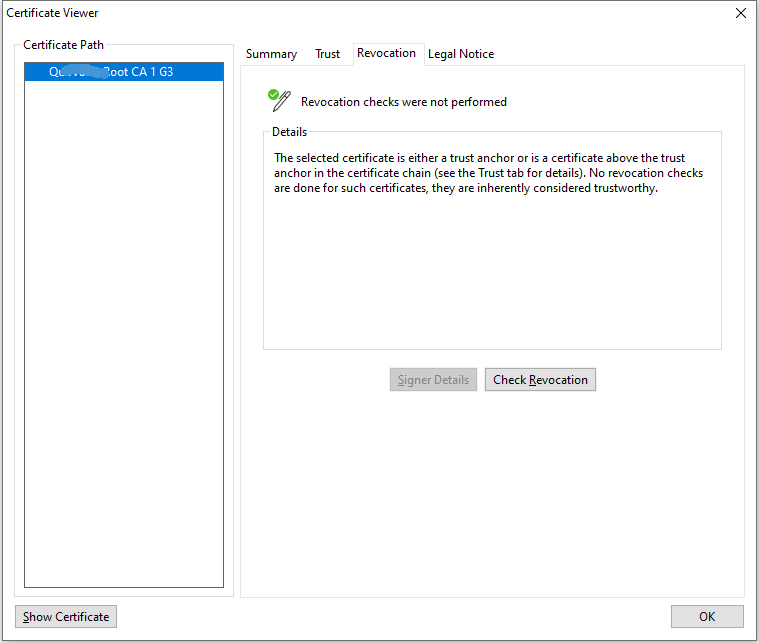
By default, Foxit PDF Editor will check the certificate revocation status while validating a signature if the certificate used to sign a PDF file chains up to a certificate designated as a trusted anchor. Revocation checks are performed based on the revocation information embedded in the digitally signed PDF document, the digital signature, or the Certificate Revocation List (CRL). To view the certificate revocation information, please do the following:
- Do one of the following:
- Choose Protect > Sign & Certify > Trusted Certificates, and double-click the certificate.
- In the Digital Signatures panel, right-click the signature, choose Show Signature Properties, and then click Show Certificate.
- In the Certificate Viewer dialog box, click Revocation tab to view the revocation information, and click Signer Details to get more information on the source of the revocation information.
- (Optional) If you do not check Require certificate revocation checking to succeed whenever possible during signature verification option in Signature preferences, you can click Check Revocation in the Revocation tab to perform revocation check manually.