There are ten basic buttons to add form fields for you to create an interactive PDF form:
Button | Tool Name | Description |
 | Push Button | Creates an interactive form element to initiate certain predefined actions, such as opening a file, submitting data to a web server, or resetting a form. This button can also be customized with images and text. |
 | Check Box | Presents yes-or-no choices for individual items. If the form contains multiple check boxes, users can select what they want. |
 | Radio Button | Presents a group of choices from which the user can select only one item. |
 | Combo Box | Lets the user either choose an item from a pop-up menu or type in a value. |
 | List Box | Displays a list of options the user can select. |
 | Text Field | Lets the user type in text, such as name, address, phone number, etc. |
 | Signature Field | Creates a blank digital signature field for reviewers to sign the document |
 | Image Field | Lets the user browse and select an image to add to the field. |
 | Date Field | Lets the user choose a date. |
 | Barcode Field | Represents a user’s form entries in a visual pattern that can be scanned, interpreted, and incorporated into a database. |
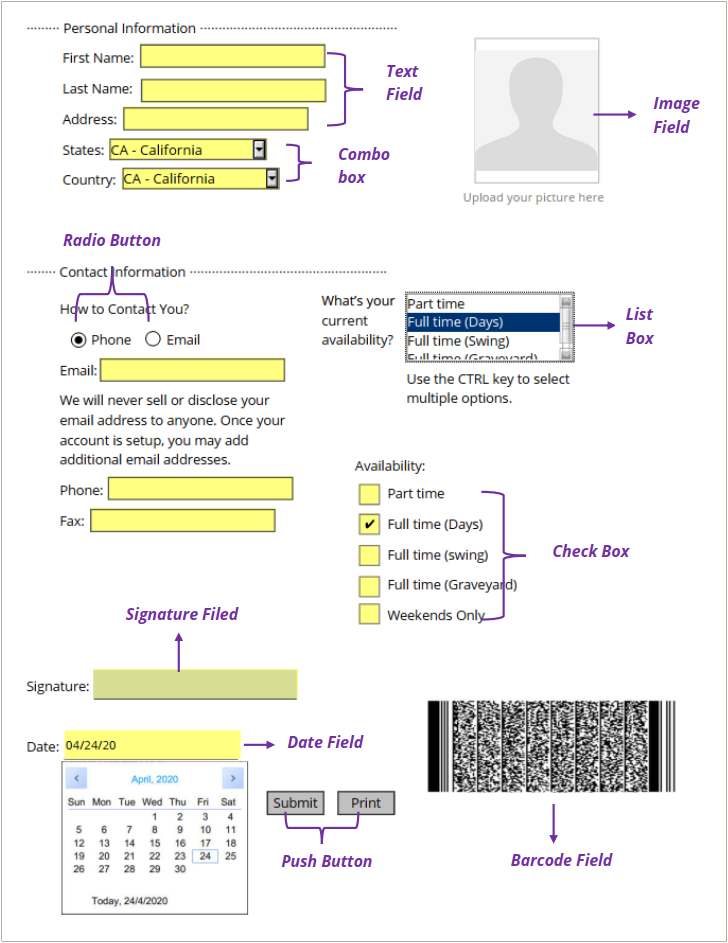
Form Fields
Note: To create the same type of form fields continuously without reselecting the same tool, you can select Form > Tool Settings > Keep Tool Selected.