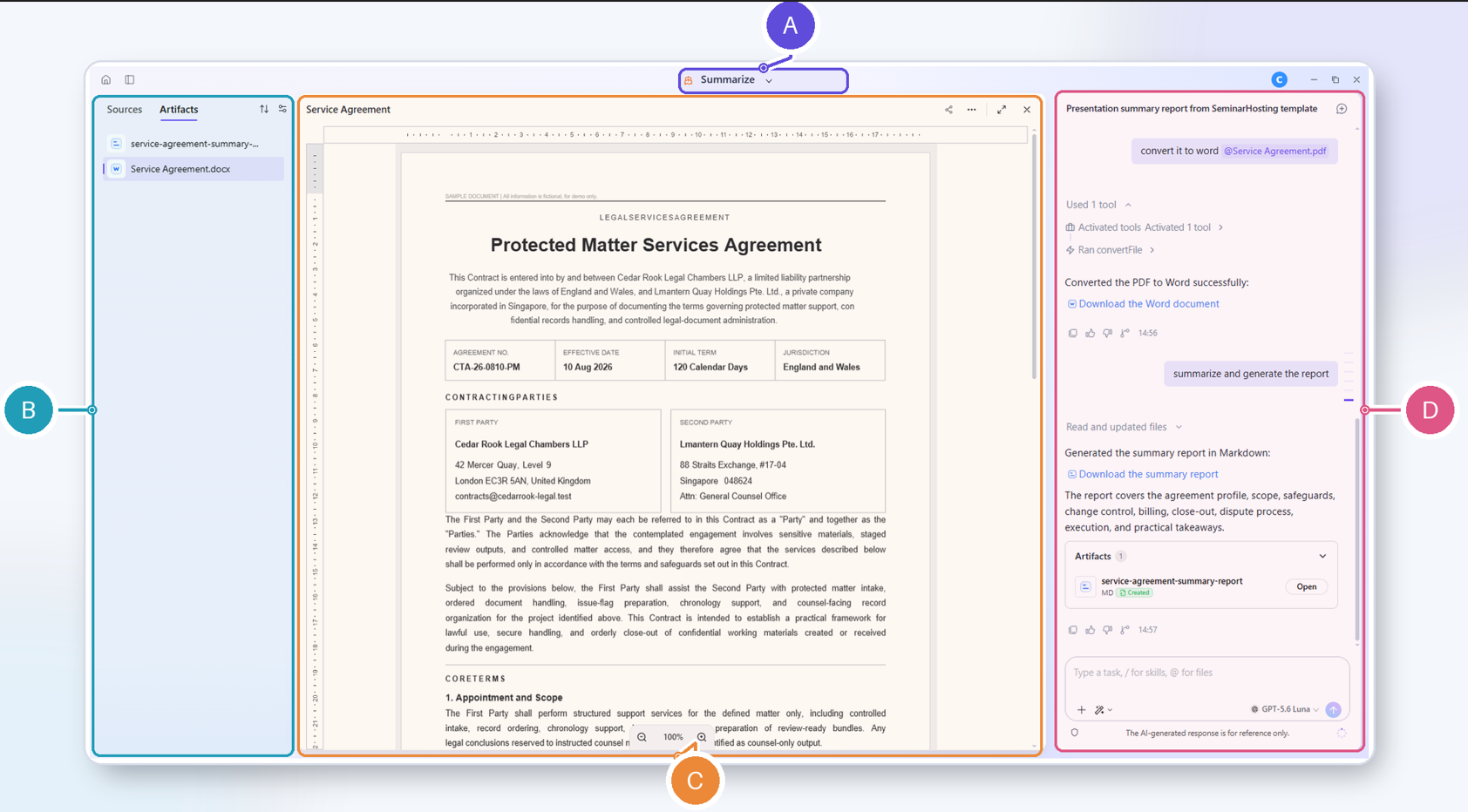
When you open a project, the main work area brings together its source materials, outputs, and conversation. It is the place where you assign tasks, review the results, and download your outputs.
Project header: The project header at the top of the work area displays the name of the current project. You can click the project name to rename it, or click the down arrow button next to the name to switch to a different project or create a new one.
Side panel: The side panel on the left lists the source materials and generated outputs for your current project. You can click
 to show or hide the panel.
 Document preview pane: The preview pane in the middle of the work area allows you to preview a source file or artifact. The toolbar at the top of the pane provides controls to work with your file, such as searching for keywords, translating the document, switching between standard view and code view, and much more. (Tip: The controls available may vary based on the type of document you have opened.) To concentrate on your conversation, click the Close preview icon
 located at the top to close the preview pane.
 Chat panel: This is the conversation area to interact with AI. You can send requests and receive AI responses here. It can be hidden by clicking the Hide chat panel icon
 at the top of the document preview pane.